Case Tools
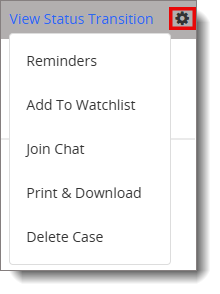
The Case Tools feature allows you to set task reminders, schedule chat sessions, request translations, print and download case details, and add or remove cases from the case watchlist. The available tool options may vary depending on your access level permissions and data privacy settings.
Important: Access level permissions and data privacy settings are assigned by a System Administrator.
 Reminders
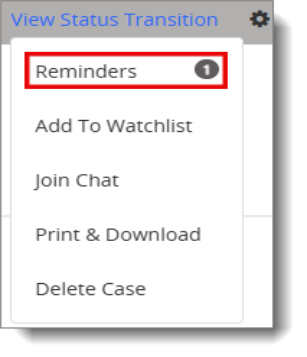
The Reminders option allows you to receive email alerts before the due dates and times set for important activities. A counter shows the number of reminders you have set for a case.
-
From the case, select the gear (
 ) icon, and then select Reminders to view, edit, or delete individual reminders.
Add or Remove a Case from the Case Watchlist
The Case Watchlist allows you to tag cases that you want to monitor. Your case Watchlist is only visible to you and is not shared with other users. Cases added to your watchlist appear on the Home tab, if the Watchlist Widget is selected.
Note: Adding or removing a case from the Watchlist is not recorded in the case history.
Adding Cases to My Case Watchlist
To add a case to your case Watchlist, do one of the following:
- From the case, select the gear (
 ) icon, and then select Add to Watchlist.
 - Select the star icon in the Case Snapshot section.

Removing Cases from My Case Watchlist
To remove a case from your case Watchlist, do one of the following:
- From the case, select the gear (
 ) icon, and then select Remove from Watchlist.
 -
Select the black star icon to remove a case from your watchlist.

Join Chat
EthicsChat is an anonymous, secure, real-time chat tool that provides an open line of communication between users and reporters, shortening the investigative time line while still ensuring anonymity. Reporters and users can type in a secure chat room window. See EthicsChat for more information about scheduling, starting, and ending chat sessions.
Important: The Join Chat option is not available for data privacy cases.
The chat transcript is saved in the Follow-ups section of the case, so that users can view it at a later date.
Print & Download
- From the case, select the gear (
 ) icon, and then select Print & Download.
 - From the Print & Download page, select the sections of the case that you want to print.
- select Print Case to open a printable case overview in a new browser window, and then use your browser's Print option to print to a selected printer or file.
- Alternatively, you can select Download to download a case overview in .doc format.
Delete a Case
Important: Deleting a case is permanent and irrevocable.
This function allows a user with the appropriate access level privileges to permanently delete a case from the system. The case and all related information and attachments are deleted, ensuring no log is retained. See Delete a Case for more information.
Data Privacy Management
Data Privacy Management is a tool that is available when the Data Privacy Module has been enabled for your organization. It provides designated Principal Data Privacy Users with the incident and administrative tools necessary to manage data privacy cases, such as redacting personal identifiable information from a case. For more information about the Data Privacy Module, see the Working with Data Privacy Management Resources using Incident Management learning course.
Product Information
Copyright
Copyright © 2026 NAVEX Global, Inc. NAVEX Global® is a registered trademark/service mark of NAVEX Global, Inc. The NAVEX Global® logo is a trademark/service mark of NAVEX Global, Inc. Unauthorized use of NAVEX Global, Inc.’s trademarks/service marks is strictly prohibited without prior written permission from NAVEX Global, Inc.